
Microsoft 365 is brilliant — when it’s set up properly. The problem is, most small businesses either set it up themselves in a hurry, or inherited a setup that nobody’s properly looked at since.
The result is a system that mostly works, but has a few gaps that could cause real problems down the line.
Here are the five mistakes we see most often — and what to do about them.
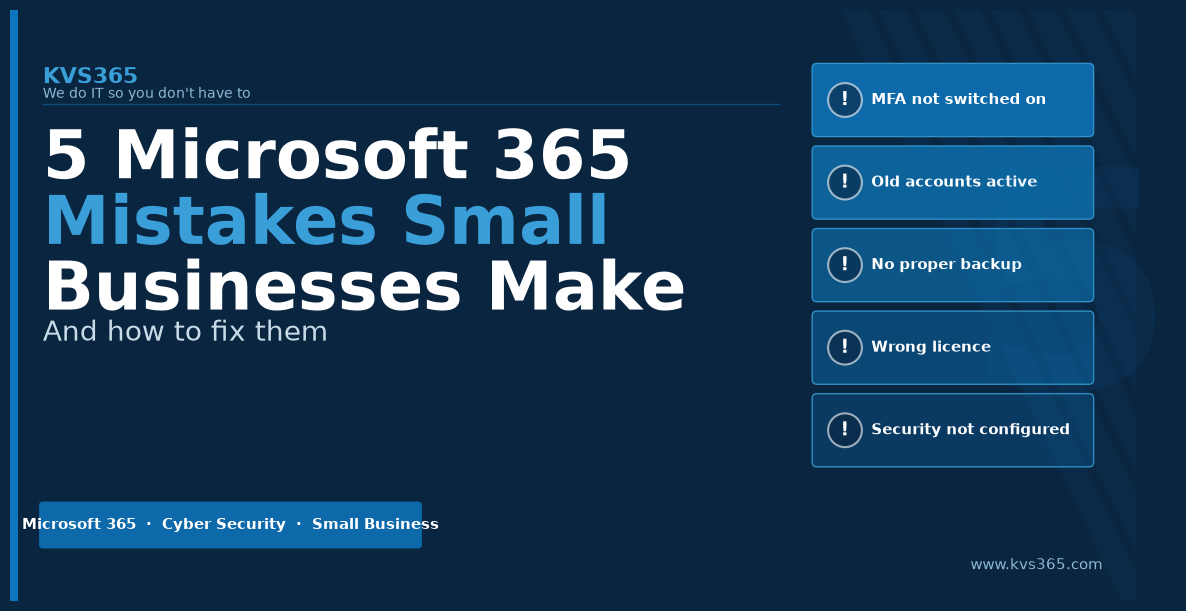
1. MFA isn’t switched on for everyone
Multi-factor authentication (MFA) is the single most effective thing you can do to protect your Microsoft 365 accounts. It means that even if someone gets hold of a password, they still can’t get in without a second verification — usually a code on your phone.
Microsoft themselves say that MFA blocks over 99% of account compromise attacks.
And yet, in a surprising number of the setups we look at, MFA either isn’t switched on at all, or it’s only switched on for some users — often because it was “too complicated” for a few people when it was first rolled out.
The fix: Switch on MFA for every account, no exceptions. In the Microsoft 365 admin centre, go to Users → Active users → Multi-factor authentication. If you’re not sure how, this is something we can sort out quickly — it takes less than an hour for most small businesses.
2. Old accounts are still active
When someone leaves a business, their Microsoft 365 account should be disabled (or at minimum, have their password changed and MFA reset) immediately. In reality, this often gets forgotten — especially in small teams where there’s no dedicated IT person to handle offboarding.
An active account belonging to an ex-employee is an open door. If they still know their password, they can still access your emails, files and systems. If their credentials have been compromised elsewhere, attackers can use them to get into your business.
We regularly find accounts for people who left months or even years ago, still sitting there active.
The fix: Go to Users → Active users in the Microsoft 365 admin centre and check every account. Anyone who’s no longer with you should be blocked immediately. Their emails and files can be preserved without the account staying active.
3. You think Microsoft is backing up your data — it isn’t
This is probably the most common and most costly misconception we come across.
Microsoft 365 keeps your emails and files available and synced across devices, but that’s not the same as a backup. If a file gets accidentally deleted, overwritten, or encrypted by ransomware, Microsoft’s standard retention policies may not save you — especially if you don’t notice for a while.
Microsoft’s own service agreement is clear: they recommend that customers use third-party backup solutions to protect their data. Most small businesses either don’t know this or assume it’s covered.
The fix: Add a proper backup solution for your Microsoft 365 data — email, SharePoint, OneDrive and Teams. There are good, cost-effective options designed specifically for Microsoft 365. If you’re not sure what you have in place, that’s worth checking as a priority.
4. You’re on the wrong licence
Microsoft 365 comes in a range of plans — Business Basic, Business Standard, Business Premium, and various others. Each one has different features, particularly around security.
The issue we see most often is businesses on a cheaper plan that’s missing security features they actually need — or sometimes the reverse, paying for Business Premium when Basic would do the job.
Business Premium is where the advanced security features live — things like Microsoft Defender, Intune for device management, and the tools needed to properly meet Cyber Essentials requirements. If you’re handling client data, working towards Cyber Essentials, or have staff on multiple devices, Business Premium is usually the right choice.
The fix: Check what licences you’re on (Billing → Your products in the admin centre) and compare them against what you actually need. If you’re not sure, this is exactly the kind of thing we review in our free IT and Security Check.
5. Security defaults haven’t been configured
When Microsoft 365 is first set up, it comes with a set of defaults. Some of those defaults are fine. Some of them leave your business more exposed than it needs to be.
Common examples:
- External email forwarding allowed — meaning anyone whose account is compromised can quietly forward all their emails to an outside address
- Too many global admins — admin accounts have full access to everything; most businesses have far more than they need
- Apps with excessive permissions — third-party apps that have been connected to Microsoft 365 and never reviewed
- Audit logging switched off — meaning if something does go wrong, there’s no trail to investigate
None of these are obvious if you don’t know what to look for. But they all create real risk.
The fix: A proper security review of your Microsoft 365 configuration. Microsoft’s Secure Score (in the Security admin centre) gives you a starting point — it scores your setup and suggests improvements. A score below 50% is a sign there’s meaningful work to do.
How do you know if any of these apply to you?
The honest answer is: unless someone has specifically reviewed your setup, you probably don’t.
Most of these issues don’t cause any visible problems day-to-day. They only become apparent when something goes wrong — an account gets compromised, a file goes missing, or an auditor asks questions.
The best time to find them is before that happens.
We offer a free IT and Security Check for small businesses — 30 minutes, plain English, no pressure. We’ll look at your Microsoft 365 setup and tell you honestly what’s there, what’s missing, and what (if anything) needs fixing.
👉 Book your free IT & Security Check(opens in new window)
Or if you’d like to find out more about how we look after Microsoft 365 for small businesses: Microsoft 365 at KVS365(opens in new window)
Ken Strettle is the founder of KVS365, a UK-based IT consultancy helping small businesses get Microsoft 365 working properly, stay secure, and get Cyber Essentials ready. Based in Newark, working with businesses across the UK.
Leave a Reply